Can Claude build a website? Yes, in three ways

On this page
The short answer to "can Claude build a website" is yes, and it happens in three different ways. Claude can write the code for a page in a chat, build a whole project through a coding tool, or edit a site that already lives on a hosted website builder. They differ in what each one leaves you to do afterward. This guide gives the short version of each, then shows the third in full on FolioPage, a portfolio website builder.
The three routes at a glance
| Route | What you do | What Claude does | What is left to you |
|---|---|---|---|
| A chat | Describe the page you want | Writes it as code and shows the result | Hosting, a domain, forms and every later edit |
| A coding tool | Describe the project | Edits the project's files and runs commands | The same list, plus looking after a code project |
| A connector to a hosted builder | Ask for changes in plain words | Edits your site through the builder | Your own text and pictures, and a look at the result |
In a chat, Claude writes a page as code. Anthropic's help center lists single-page websites among the things Claude can make as an artifact, and you can share one with a link. Anthropic's Claude Code documentation describes an artifact as "one self-contained page with no backend", so a site with several pages and a working contact form means moving the code to a host, adding a service that receives the form, and looking after both.
Claude Code is Anthropic's coding tool. Its documentation calls it "an agentic coding tool that reads your codebase, edits files, runs commands, and integrates with your development tools", and it runs in a terminal, code editors, a desktop app and the browser. What you end up with is a codebase, which still has to be hosted and kept up.
Through a connector, Claude edits a site that already exists on a hosted website builder, so the hosting and the form delivery are taken care of and you never see code. You add the builder to Claude as a custom connector by its URL.
Start with a FolioPage site
FolioPage, which publishes this magazine, is a hosted website builder for portfolios. It has an MCP server, the kind of server a custom connector points to, and no AI of its own that designs or writes a site. What it offers is the connection: the assistant you already use gets a set of tools for reading and editing your site, and it works on the same pages, sections and apps you see in the dashboard. The features page shows it in the product.
The assistant edits a site that exists and does not create one, so the first step is yours. Pick one of over 100 templates, each a live site you can open before you choose, and create your site from it. A new account gets a 14-day free trial with no credit card.
If you have not planned the site yet, start with how to build a portfolio website in a day, or with the guide to a personal portfolio website if the site is about one person. Other how-tos are in Guides.
Connect Claude to your site
Copy the server address
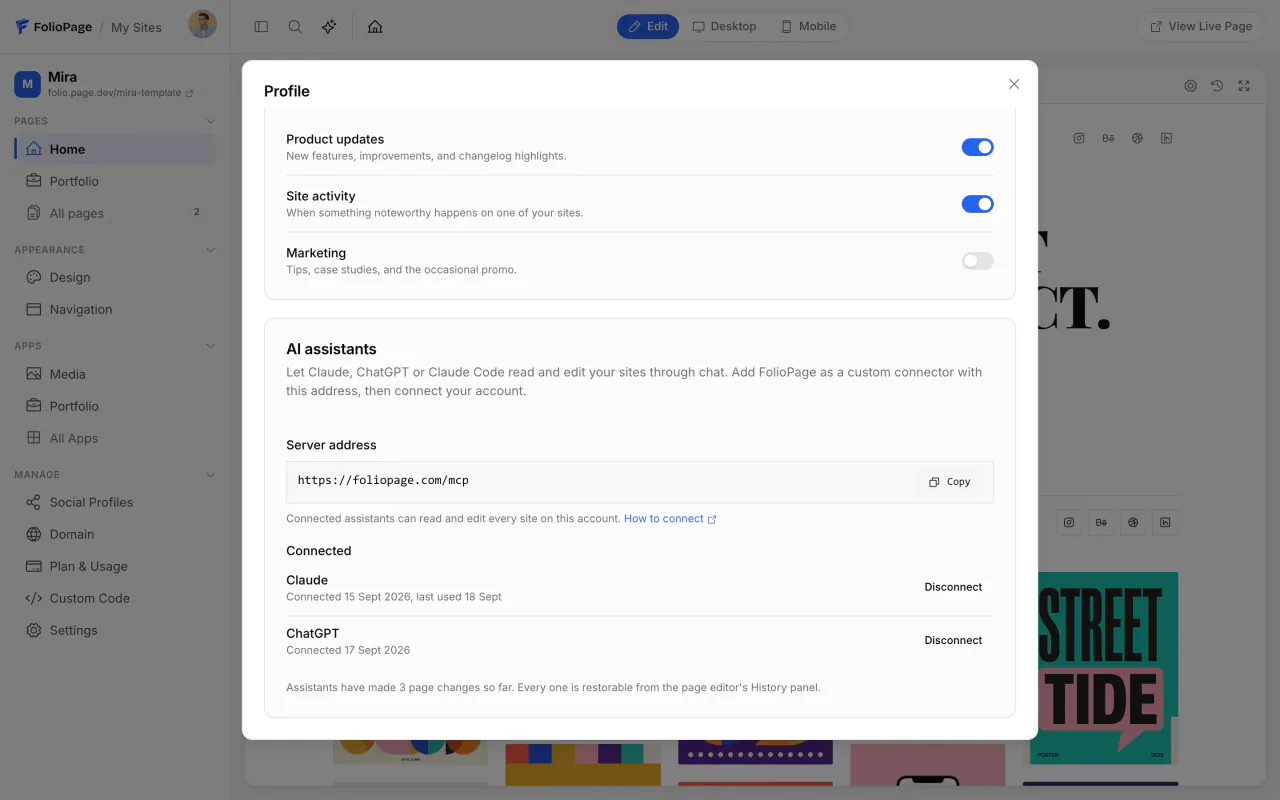
In the FolioPage dashboard, click the sparkle icon in the top bar, or open Profile from your avatar and scroll to the AI assistants card. The Server address is https://foliopage.com/mcp. Click Copy.
Add a custom connector in Claude
In Claude, go to Customize, then Connectors. Select Add, then Add custom connector. Enter a name, paste the server address and click Continue. Keep the settings Claude marks Detected and click Add. Anthropic's connector instructions list each step.
Allow the connection
If the new connector shows Connect, click it. A FolioPage page opens and asks you to allow the connection. Log in if needed and click Allow.
Start a chat
Open a new chat and ask about your site: "Open my FolioPage site and list its pages, with a line on what each one holds." With one site, the assistant finds it on its own. With several, name the one you mean once at the start.
On Claude's Team and Enterprise plans, an owner adds the connector for the organization first, and each person then connects their own account. Claude Code can use the same server, added with claude mcp add --transport http foliopage https://foliopage.com/mcp.
Anthropic's advice for custom connectors is to review tool approval requests carefully and to click Always allow only for servers you trust. Approve changes one by one until you have seen how the assistant works on your site.
What to ask Claude to do
The assistant reads a page before it edits it, changes one thing at a time and tells you the page address afterward so you can look. Put your real content in the request: the exact wording, your prices, the facts of a project. The requests below are examples to adapt.
Text and sections on a page
On any page, Claude can rewrite the text in a section, add a section from the library of more than 750 sections, change a section's options, move it or remove it.
- "Cut the About text on my homepage to three sentences and keep my own phrasing where you can."
- "Add a services section under the hero on my homepage with these three services: brand identity, packaging and posters."
- "Put the contact section last on the homepage."
Portfolio projects
A project takes a title, a description, a category, facts such as client, year and role, and images that are already in your media library. Claude can add a project, update it, mark it as featured or keep it as a draft.
- "Add a project called Lakeside Bakery to my portfolio in the Branding category. Client: Lakeside Bakery. Year: 2026. Role: identity and packaging. Use the images in my media library with lakeside in the file name, and make the storefront photo the cover."
- "Keep the Lakeside Bakery project as a draft until I tell you the client has approved it."
The resume
Claude reads the resume, makes your change and saves the whole document again. The PDF version is regenerated automatically.
- "Add a position at the top of the experience section of my resume: Senior Designer at Fieldwork Studio, June 2025 to present. Leave every other entry as it is."
The links page
A link has a title, an address, a description and an icon. Claude can add one, change it, feature it, hide it or remove it.
- "Add a link titled Book a call to my links page, pointing to the booking address I paste below, and feature it."
- "Hide the newsletter link for now, but do not delete it."
Design
Design changes apply to the whole site: a color preset or single colors, fonts, the header and the footer, and styling such as corner radius and type scale.
- "Show me the color presets that would suit a dark, high-contrast look, and apply the one I pick."
- "Make the corner radius smaller across the site."
Menu and pages
Pages and the menu are separate jobs. Claude can create a page, rename it, keep it as a draft and write its meta title and description, and it can rebuild the menu.
- "Create a Services page as a draft and leave it out of the menu for now."
- "Write a meta title and a meta description for my About page from what the page says."
- "Add my Instagram profile as the last item in the menu, opening in a new tab."
Apps and site settings
Claude can also switch an app on or off and change site settings such as the site name, the language and whether search engines may index the site.
Publishing
Edits are saved immediately, but visitors keep seeing the cached version of the site until the changes are published. Claude can do that when you ask, or you can click Update live site in the dashboard. Neither one publishes a draft page or a site that is not published yet.
- "List every page change you made on this site this week."
- "Make the edits live for visitors."
Every page change is a version you can restore
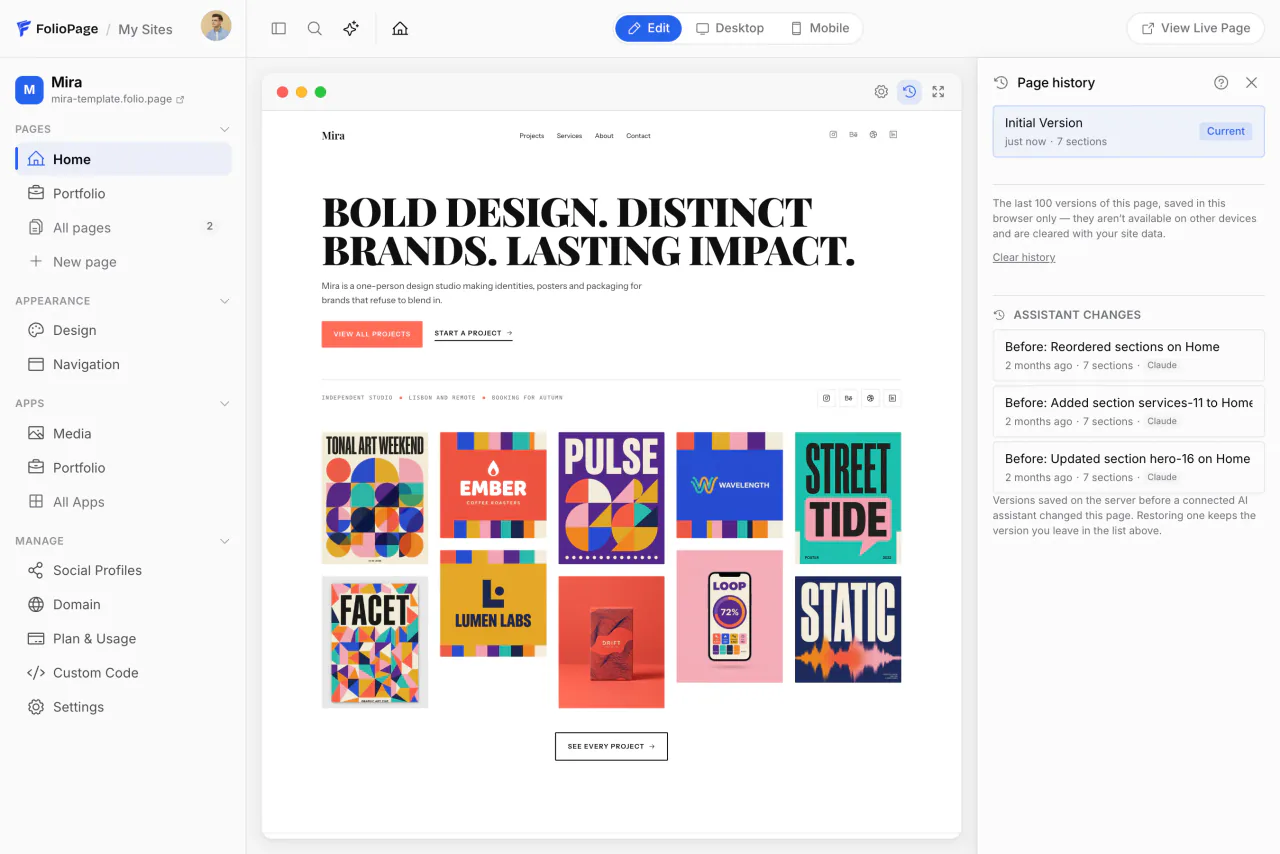
Before an assistant edits a page, FolioPage saves the page as it stood. To go back, open the page in the editor and click the Page history button in the top-right corner of the browser frame. The saved versions are listed under Assistant changes, each with the name of the assistant and the time. Click the one you want and the page is restored. The state you leave is kept in the list too. You can also ask in the chat: "Put the Services page back the way it was before your last edit."
Design and navigation changes and a resume update are not page versions. For those, the assistant receives the previous values when it makes the change, so it can put them back if you ask. Other changes, such as a page's title or meta description, a portfolio project, a link, a blog post or a site setting, keep no earlier copy, so check them after each request and correct them in the chat or in the dashboard.
What the assistant cannot do
These stay in the dashboard on purpose:
- Creating a site, deleting a page or a site, and resetting a site.
- Domains, billing and account settings.
- Uploading files. Add your pictures to the media library yourself, and the assistant can then place them.
FolioPage's server also instructs the assistant to ask you first before it publishes or unpublishes a site, replaces the whole menu, deletes a section or overwrites a resume. Your plan's limits apply as they do in the dashboard, and when a request passes one, the assistant names the plan that lifts it.
Disconnect an assistant
Open Profile, scroll to AI assistants and click Disconnect next to the assistant. Its access ends immediately, and nothing on your site changes. You can also remove the connector on the assistant's side.
Plans
Editing through an assistant is included in the Starter, Pro and Max plans and works during the trial. The site is published on a folio.page address, and a domain of your own needs Pro or Max. Starter is $6 a month, Pro $12 and Max $24. Blog posts need Max, the plan with the Blog app.
ChatGPT can do the same
ChatGPT connects to the same server address and gets the same tools. Connecting a custom server needs ChatGPT's developer mode, which is on paid ChatGPT plans. The ChatGPT guide walks through it: Can ChatGPT build a website?
Can Claude build a website without coding?
Yes. For a single page, Claude can make it in a chat and you share it with a link. For a site with several pages, an address of its own and a working contact form, the route without code is a connector to a hosted website builder: the builder hosts the site and Claude edits it when you ask.
Does Claude host the website it builds?
A page Claude makes in a chat is an artifact, which you can share with a link. Anthropic's Claude Code documentation calls an artifact a static page with no backend. A site with several pages at an address of your own needs hosting, either an account you manage or a hosted website builder.
Do I need a paid Claude plan to edit a FolioPage site?
No. Anthropic's documentation lists custom connectors on every Claude plan and limits an account that does not pay to one custom connector.
Does editing through an assistant cost extra on FolioPage?
No. It is included in Starter, Pro and Max, and it works during the 14-day trial, which needs no credit card.
Start a site Claude can edit.
Pick a template, publish on a folio.page address and connect your assistant. Free to try for 14 days, no credit card.
Start free